
Your guide to using Class Credits
Important to know before booking open.
Unique code for one class level. Your unique code will only work for your specific class level.
Keep the booking link handy. You will get your booking link to register for classes on the registration date listed in your email with your unique code. Keep this link handy because this will be the same link you use throughout the duration of your class. Booking will not be available in the mobile app.
No private lesson for class duration. By purchasing Class Credits you are agreeing not to book private lessons and Flip in Fridays throughout the duration of your class. If you are in a class, you can not sign up to be an Alternate in classes. Even once you have used all of your Class Credits, you must wait until your class has ended to begin booking private lessons and Flip in Fridays again.
Additional Studio Hour option. To try to increase the chances athletes can get in the studio about twice a month, we created "Additional Studio Hour" sessions. These sessions are specifically for the athletes who were not able to book 2 visits in a month.
That is, if your athlete was only able to get in 1 class in a month, they can sign up to attend 1 session. Similarly, if an athlete was not able to get in a class at all that month, they can sign up for 2 of these sessions that month. Athletes can attend no more than 2 session in a single month. Even with these new sessions, there is always the possibility athletes may not get 2 visits every month.
For athletes who purchase 18 Class Credits, please leave these sessions for other athletes. With 18 credits, you should be able to make 2 visits a month in September to March.
Also, please be respectful of the intent of these sessions. We do not intend for an athlete to think they can use all of their Class Credits in just a few months and then plan on booking Additional Studio Hour sessions twice a month for the rest of the season. The intend of these sessions is to give athletes a chance to average about 2 visits to the studio a month.
These will be held 2 times per week on Fridays, and will be separated into younger and older age groups. Each session will cost $25 for the hour. These will run every Friday from September to March, except for the Fridays the studio will be closed.
→ 1st to 6th Graders can attend the session on Fridays at 3:45 - 4:45pm
→ 7th to 12th Graders can attend the session on Fridays at 6:15 - 7:15pm
Class day cancelation policy. If your athlete can not attend a class they registered for, it is your responsibility to cancel that class registration at least 12-hours prior to the class start time. The system will not allow you to cancel within 12-hours of the class start time. If this occurs, please send an email to flip@theflipsidenwa.com as soon as possible letting us know if the absence. No replacement credits or refunds for credits will be issued if a class is not cancelled at least 12 hours before the class start time, since that eliminates access for another athlete to fill that spot.
When a new month will open. Class will be available to book two months in advance. Meaning, when you first get access to register, only classes in September and October will be available. The next month of classes will open on the next 1st day of the month at noon. EX) November class dates will open September 1st at noon.
When the next month of classes opens, please be patient. It may take up to 15 minutes for all classes to appear, because we have to update each class with the new class date.
Just to refresh:
→ Classes open 2 months in advance
→ Private Lessons open 1 month in advance
→ Additional Studio Hours open the month of
Step-by-step Instructions & Images
*The following steps assume a computer is used to book appointments. Display might differ slightly for booking on mobile device.*
Use the booking link for your class level that was emailed to you along with your unique code.
Login or Sign up
We recommend you login to your account before booking. If you are not logged in when you book, the class spot will be secured but it will not display in your account when you login in the future. If this happens, you can reach out to us at flip@theflipsidenwa.com and we should be able to add it to display on your account.
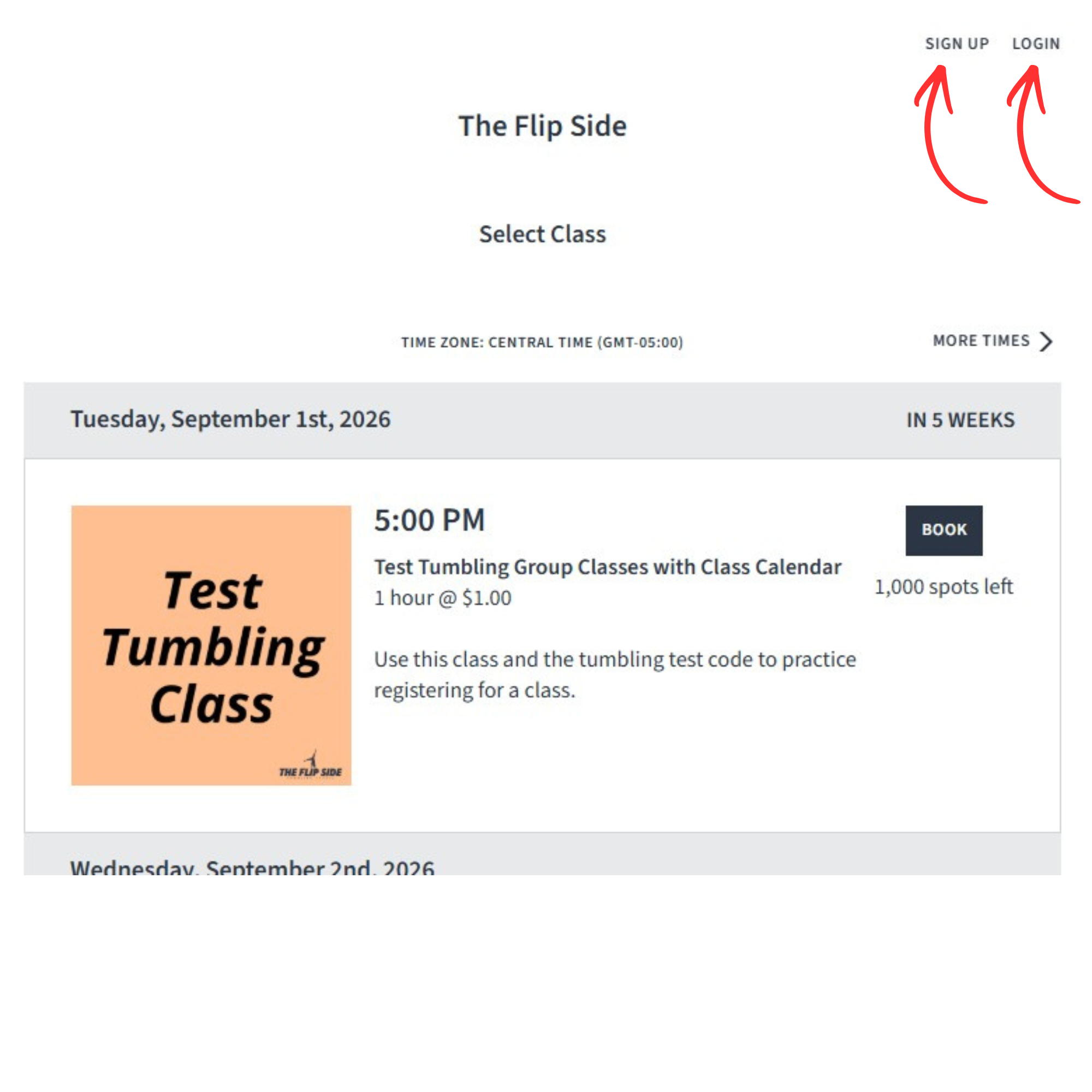
If you do not have an account, you can create an account. In the upper right corner, your will see “SIGN UP”. Create an account and you can use this same login information going forward.
You do not have to have an account to book classes, you will just need to rely on our confirmation emails for options to reschedule or cancel dates.
Picking Class Dates
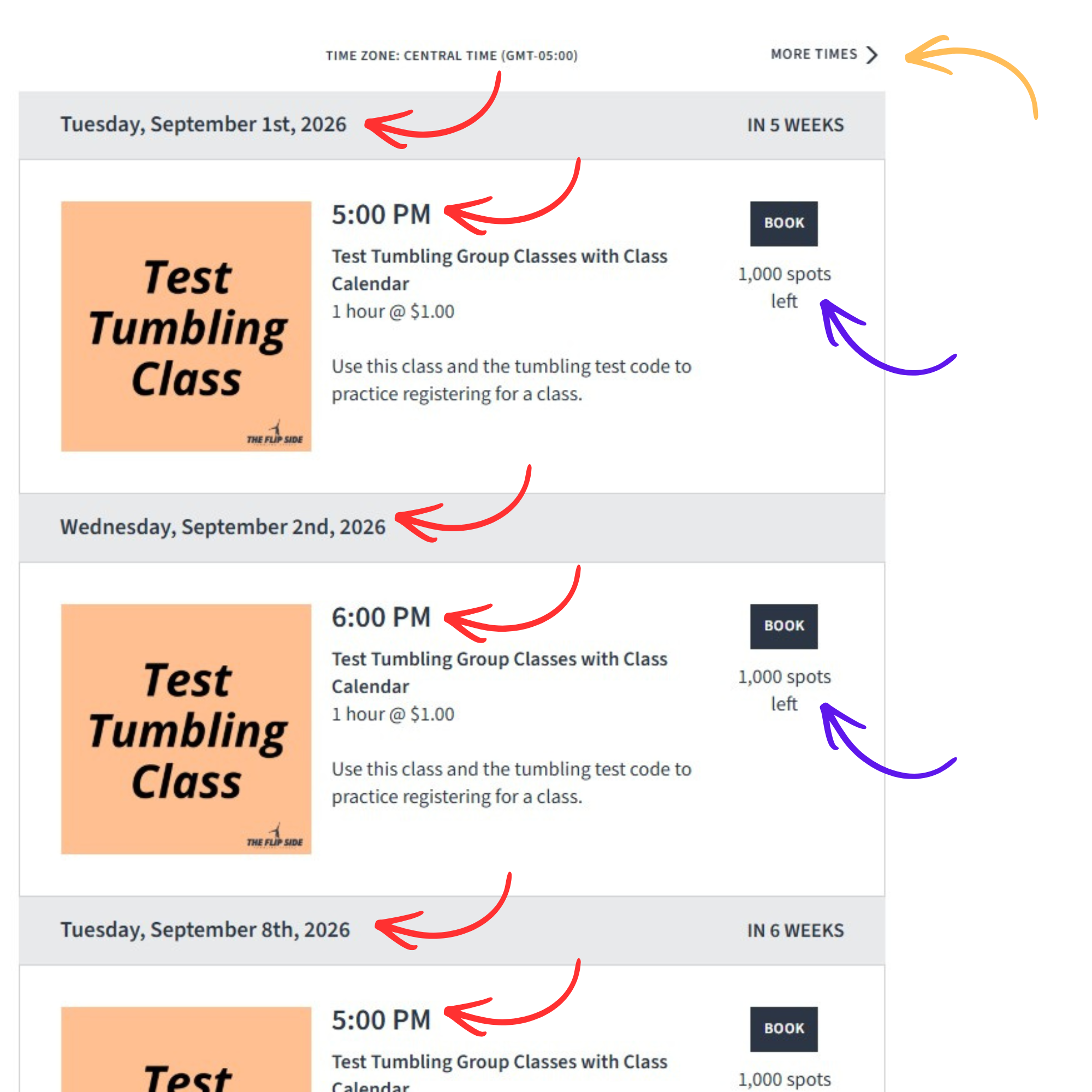
The booking link for your class level will show all classes available for the next 2 months (i.e. in August, you will see all dates through October). Classes will be listed in the upcoming order the classes are offered. You can find the date in the gray header and the time above the class title.
On this page you can see how many spots are left in each class day.
Don’t forget to click “MORE TIMES” at the very top or bottom of the list of class days to see all times available.
Enter Athlete’s Name
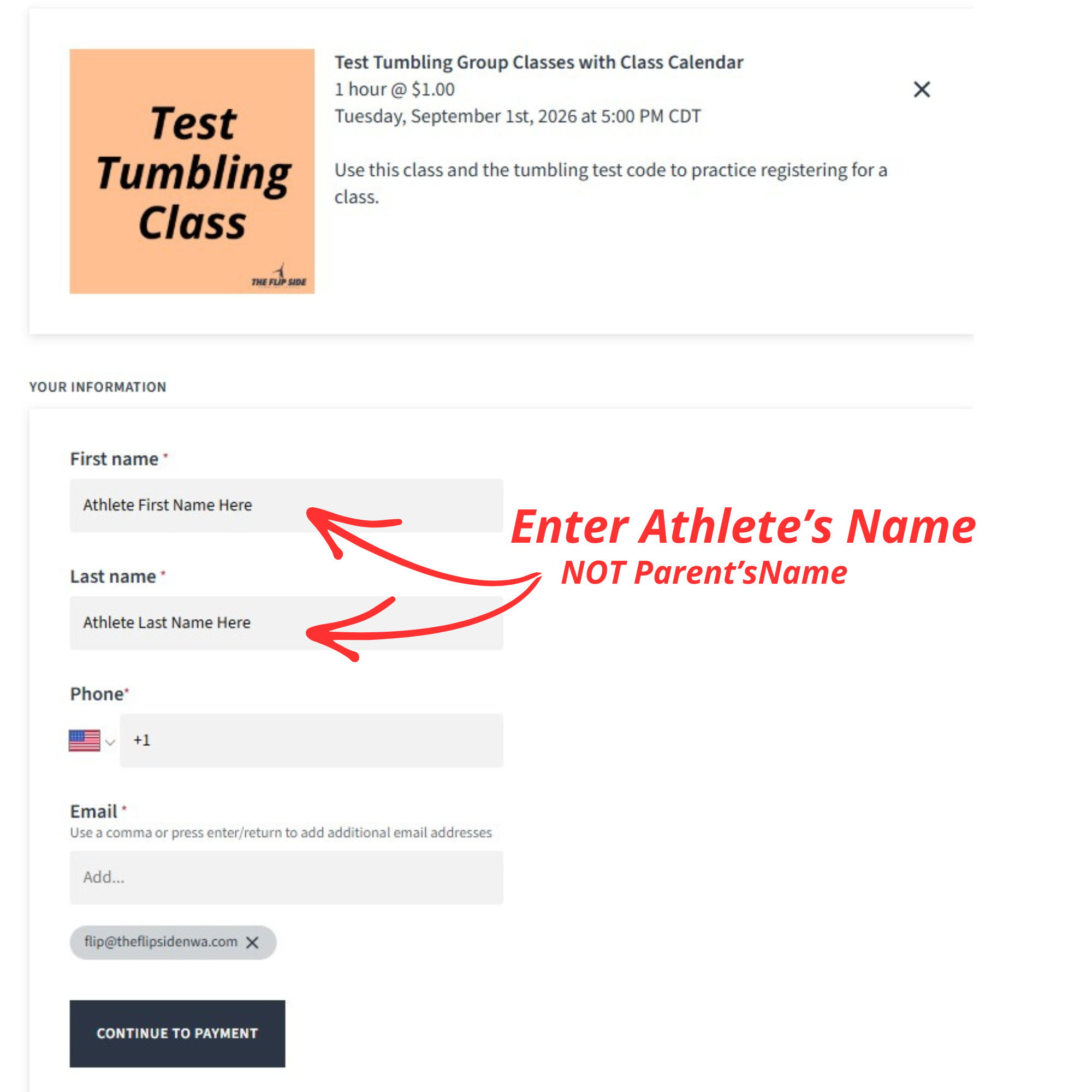
You can only book one class at a time.
Please book the appointment in your athlete’s name! Please type the same name spelling every time. Do not switch between full name and abbreviated nickname (such as Elizabeth and Liz or Lizzie). It will create another student in the system with each spelling and may also cause the appointment not to show in you account.
Enter all required information. Be sure to use the same email that is used for the account login to make sure appointments appear on your account.
If you are logged in while booking, it may automatically enter your phone number and email address from the account. Continue to payment.
Apply Unique Code
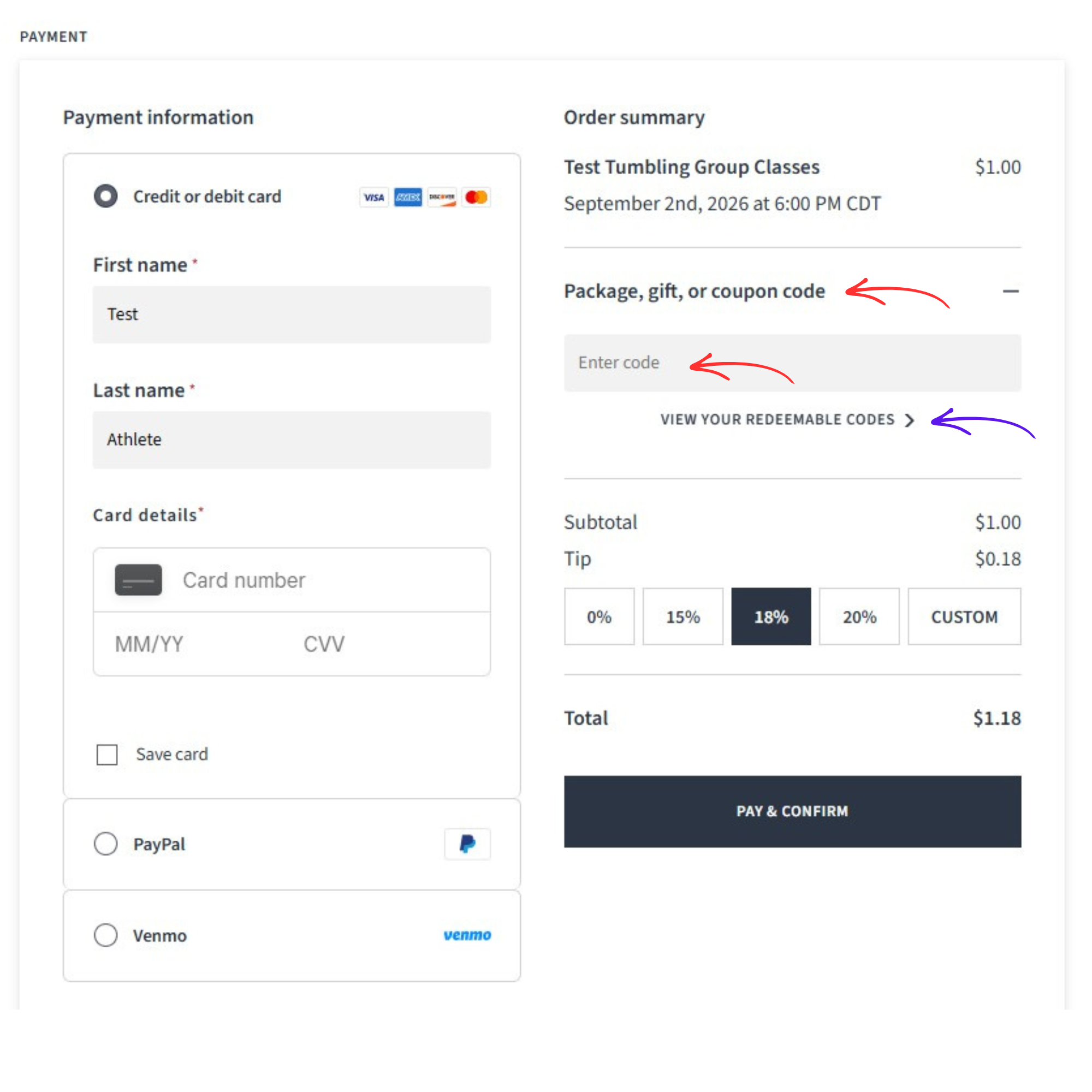
Classes have a set price but entering the code at checkout is what will zero out the balance. Season classes will be set to $1,000 each to discourage anyone from sharing links to book a class and to stop anyone from trying to book more classes than their code will allow. CAUTION: The system really will charge you $1,000 if you try to checkout without using your unique code.
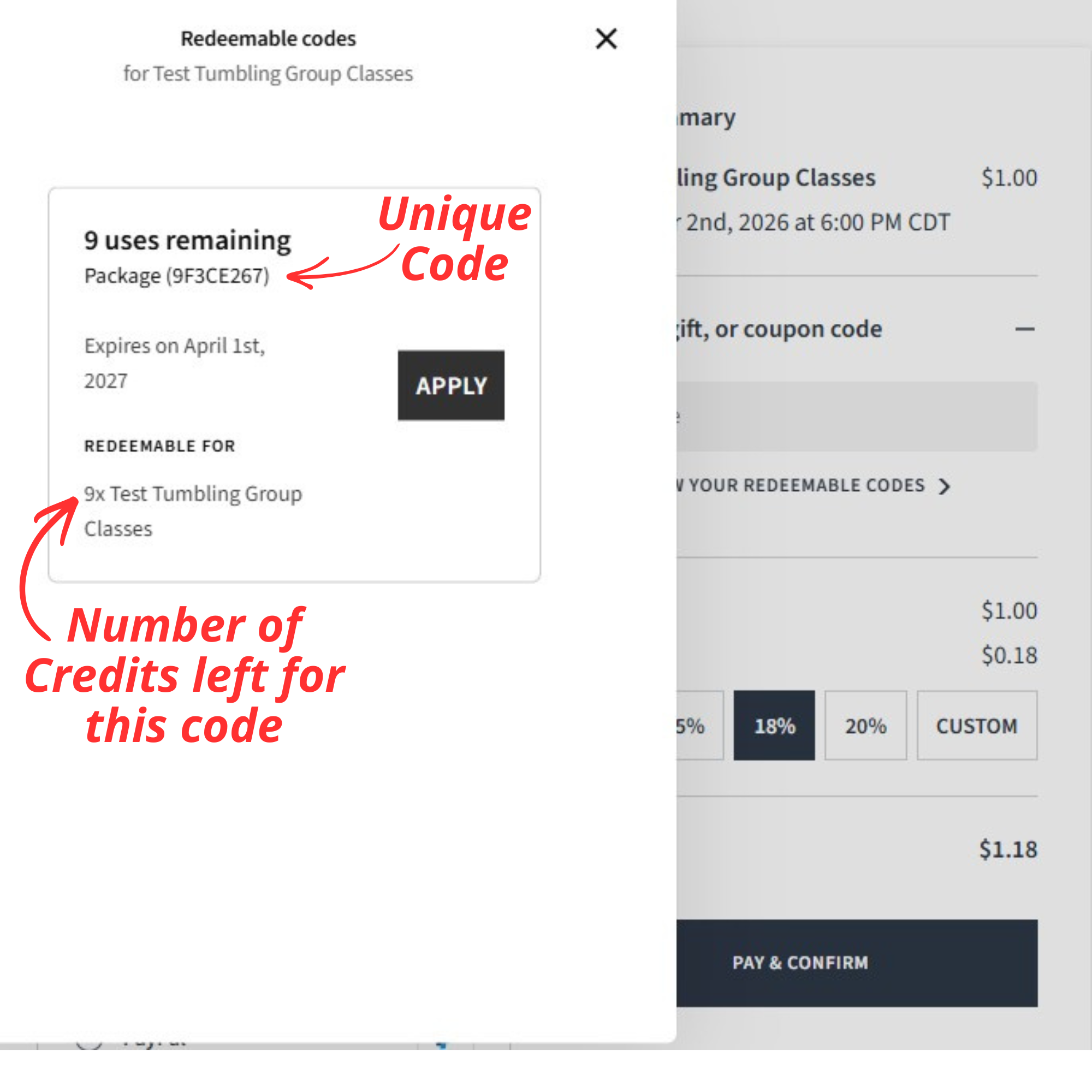
Click on the drop down option “Package, gift, or coupon code” to enter your unique code.
If you are logged into your account and have checkout before, you may see a button below the code input box that says “VIEW YOUR REDEEMABLE CODES” which will show the code available for this class level that is tied to your account.
View Redeemable Codes
If you click “VIEW YOUR REDEEMABLE CODES”, a pop up window will open that shows the code available for this class level that is tied to your account. It will also show you how many uses are left for that code. Click “APPLY” to use that code to checkout.
Discount Applied & Remove Tip
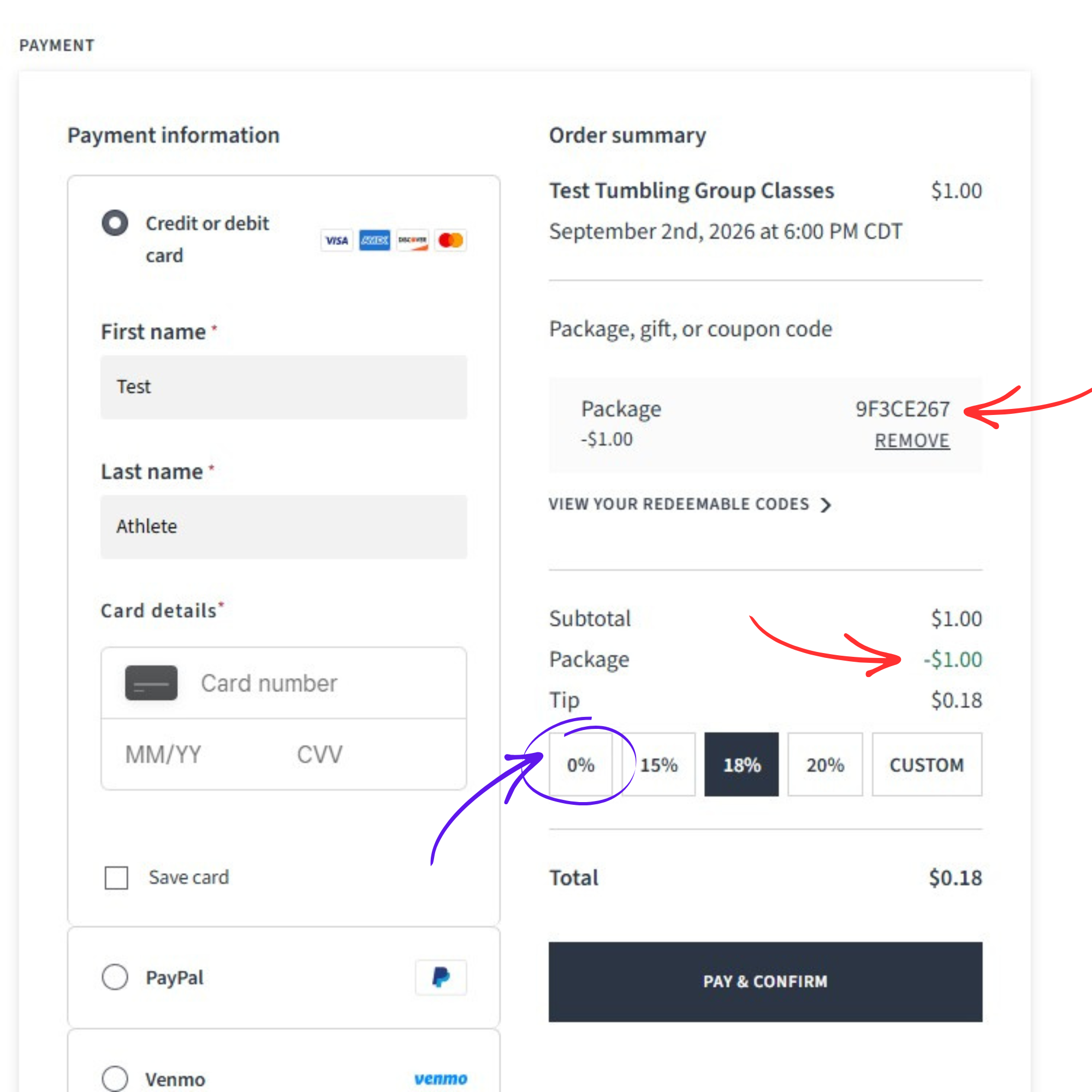
Once the code is applied, a “Package” discount will be added below the subtotal reducing the price by exactly the cost of the class.
CAUTION: The system automatically sets tip to 18%. Frustratingly, we can not change this system default, and even more frustrating, the system will still calculate 18% tip on the pre-discount subtotal even though the cost is now $0. Be sure to set the tip to “0%” before completing the booking or the system will require you to make a payment for the tip.
Once you zero the tip, the words in the dark box with change from “Pay & Confirm” to just “Confirm”. Confirm the booking to secure the class spot. You will receive an automatic email confirming the class was booked.
Schedule Another Class
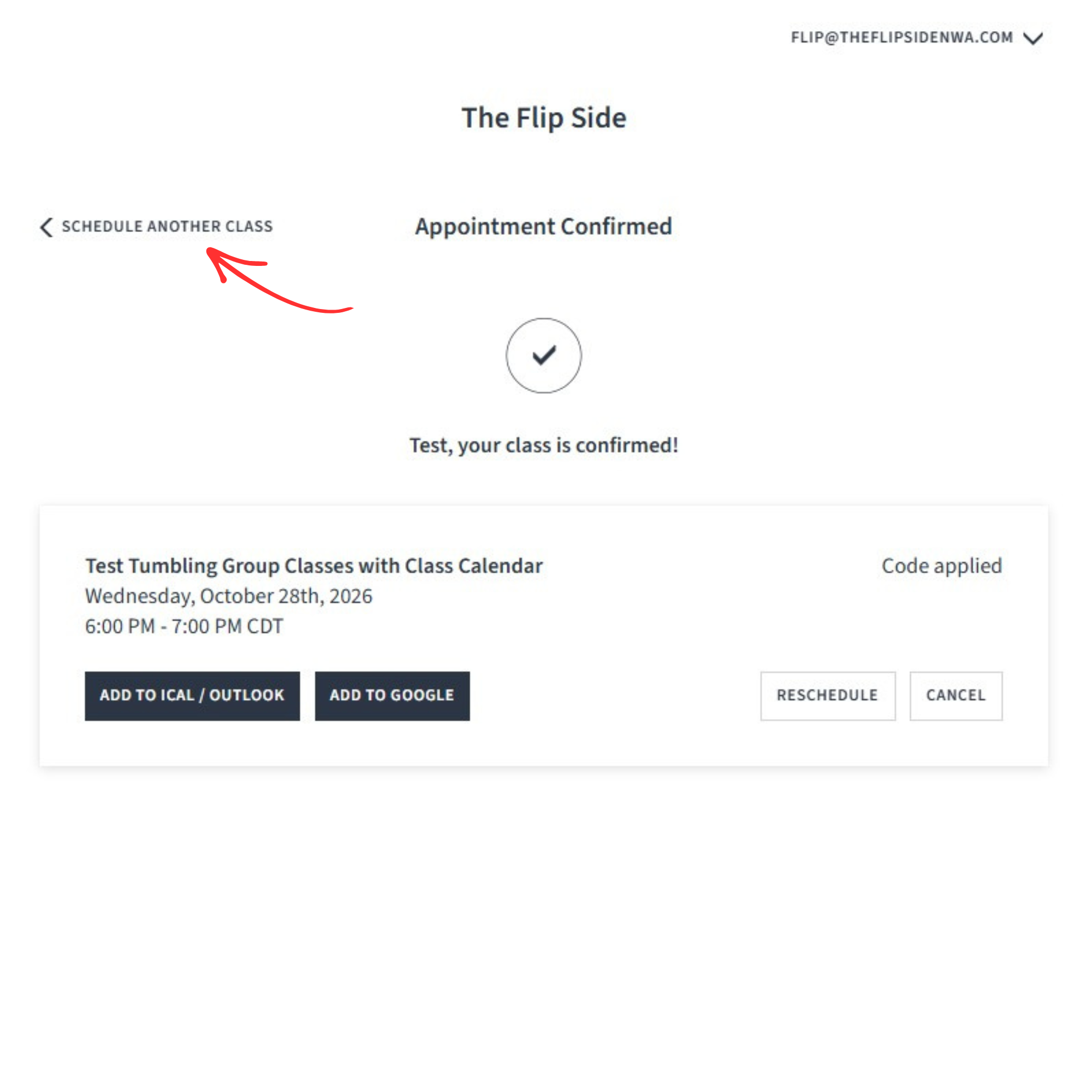
To book another class right away, click “SCHEDULE ANOTHER CLASS” button in the upper left corner. This will take you back to the original booking page to start the process again.
CAUTION: The system will let you book the same class date twice. If you are unsure what dates you have booked, double check your upcoming appointments (see below) or check your email confirmations.
View Account Appointments & Codes
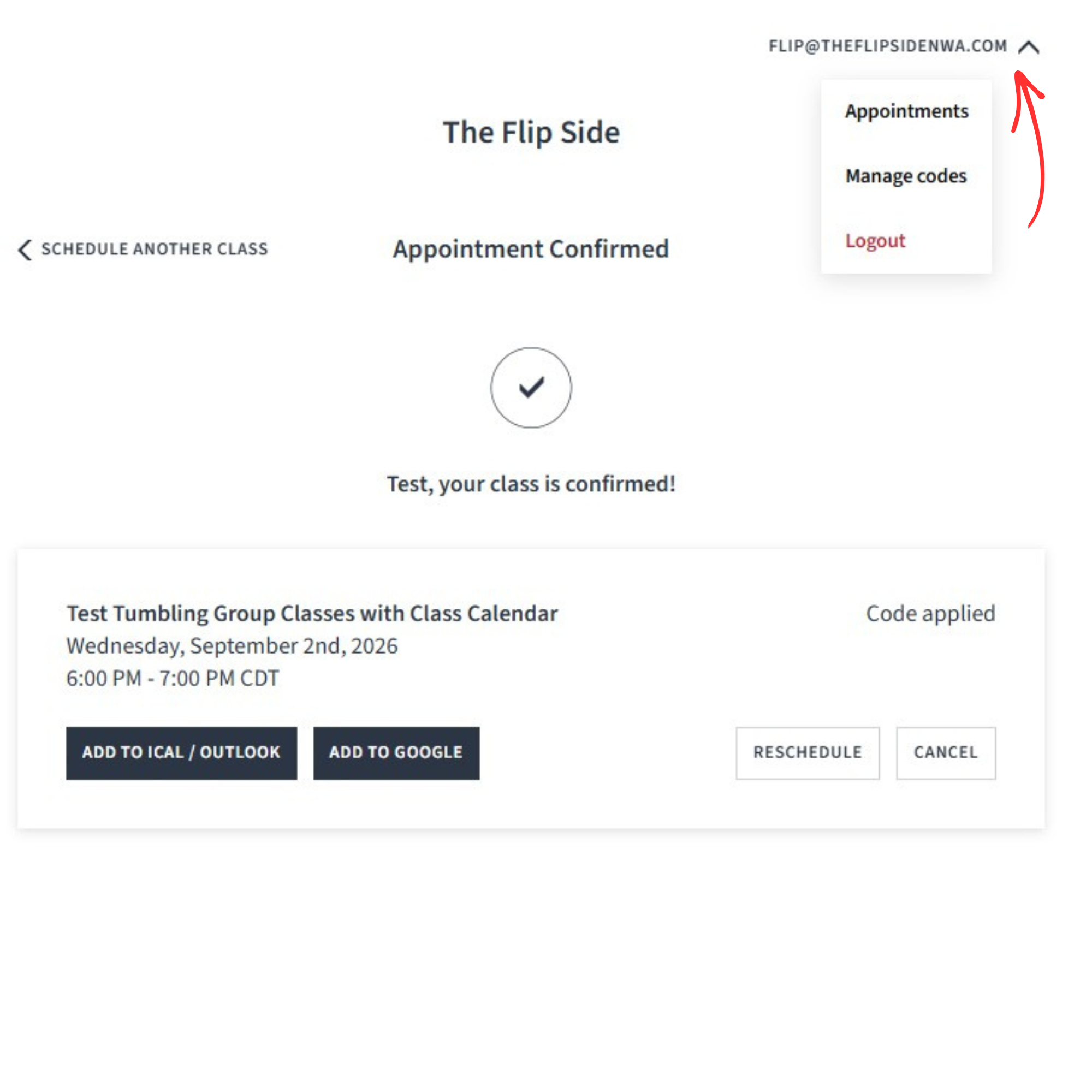
If you are logged into your account, you can click on the drop down arrow in the upper right corner next to your account email address and check your appointments and manage your codes.
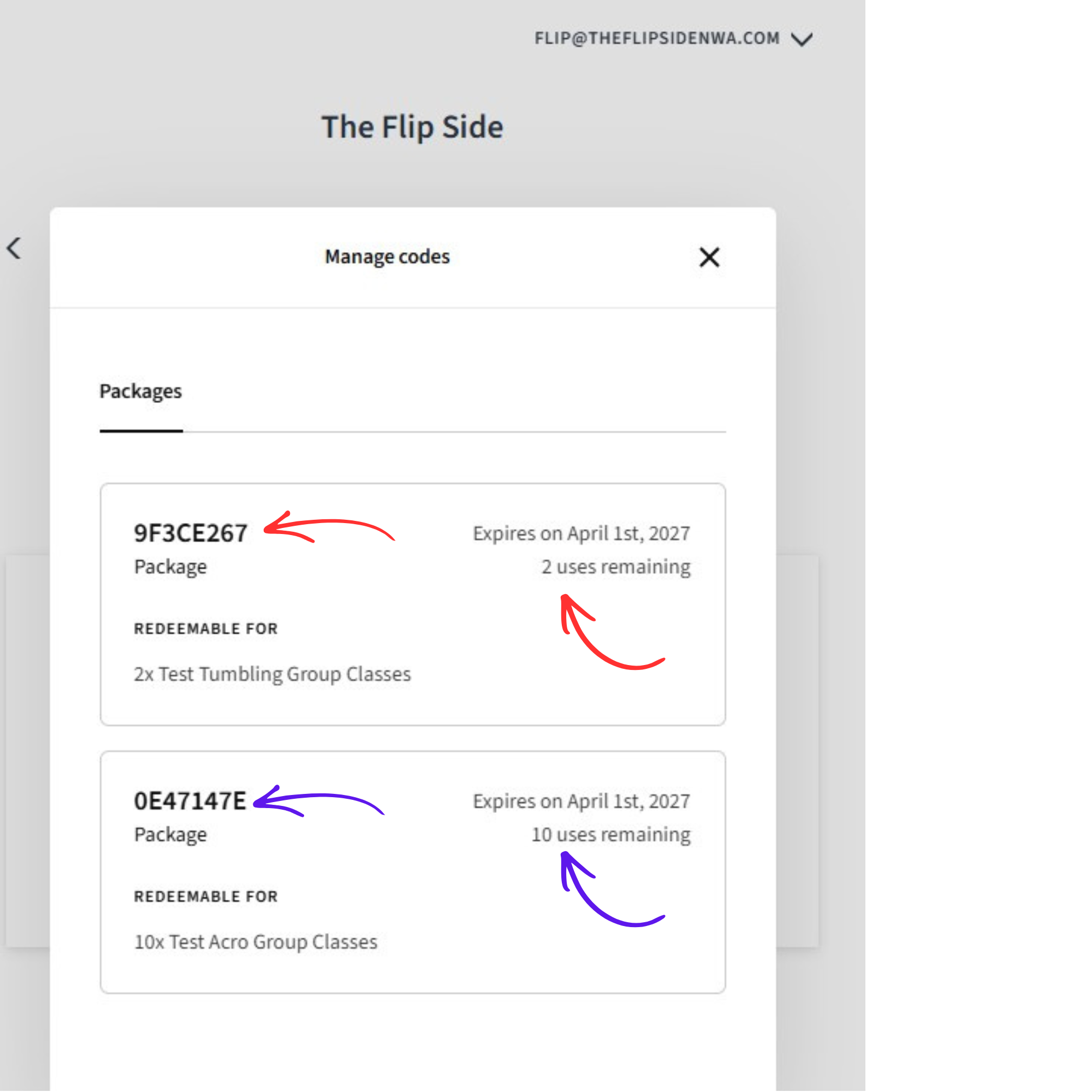
Manage Codes
From the drop down, if you click “Manage Codes”, a pop up window will open, and you can view all the codes tied to your account for any class level. This is useful for parents with multiple athletes in classes. You can easily see how many uses are left for each code.
View Upcoming & Past Appointments
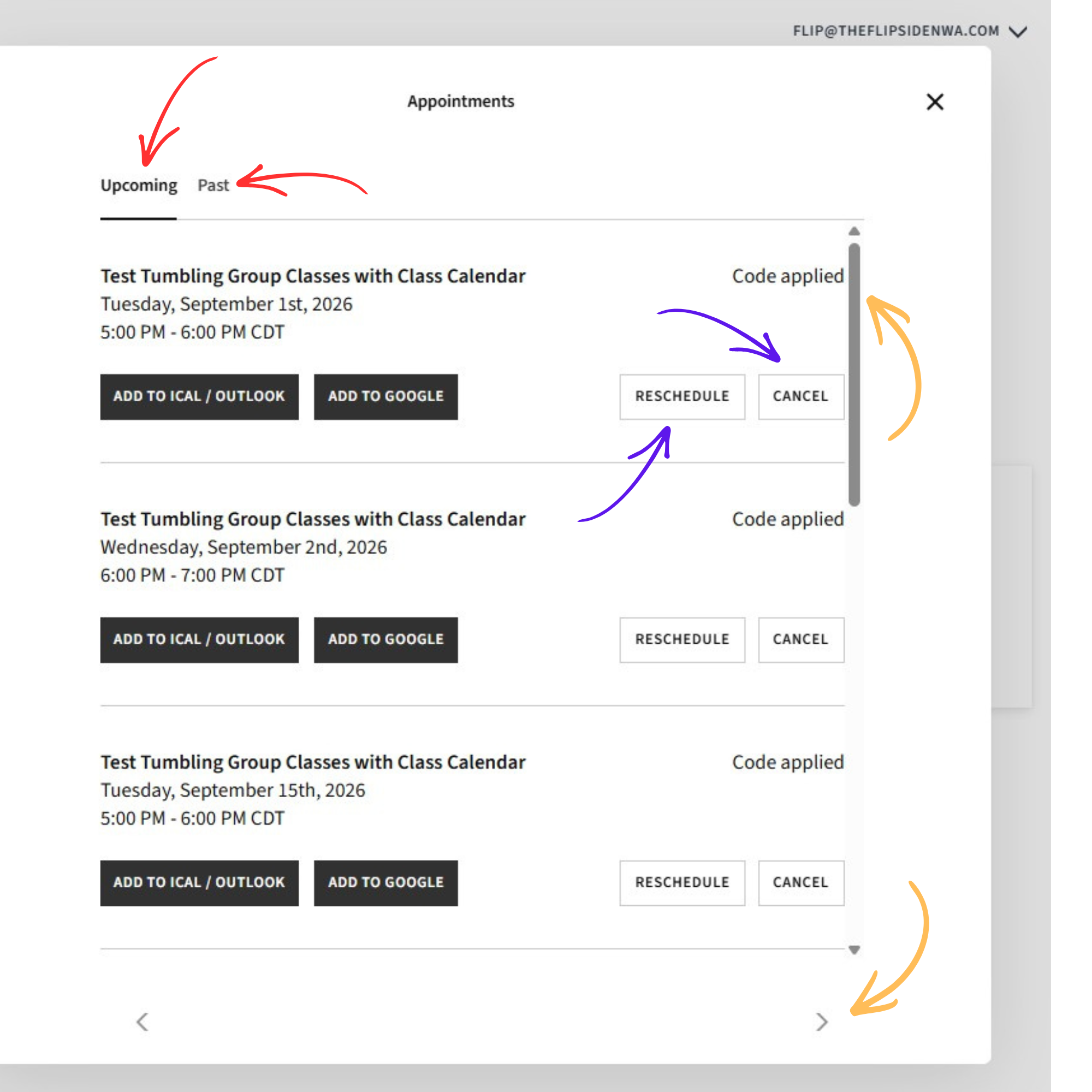
From the drop down, if you click “Appointments”, a pop up window will open, and you can view your upcoming and past appointments.
For upcoming appointments, you can easily reschedule or cancel any appointment.
Don’t forget to scroll up/down and use the left/right navigation arrow to see all of your appointments. If you do not see a class date you have booked, reach out to us at flip@theflipsidenwa.com and we will try to correct any issues.
Reschedule Appointment
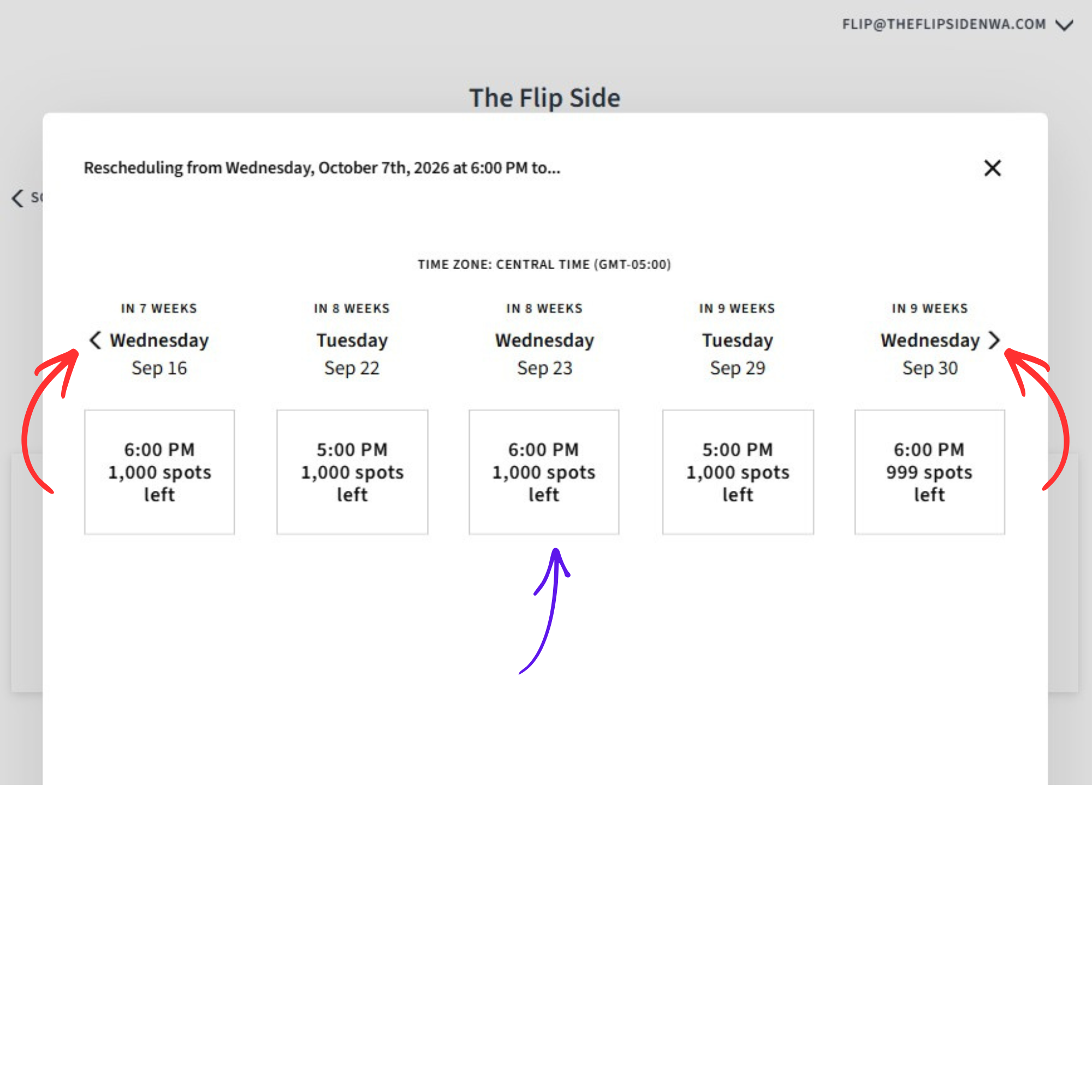
If you click “RESCHEDULE” for an appointment, another pop up window will appear showing a few class date options. These will display in order by the closest upcoming class dates. Be sure to us the navigation arrows beside the dates to see additional date options. Select the date you want, and your rescheduling is complete. You will get an automated email with your rescheduled class date/time.
Cancel Appointment
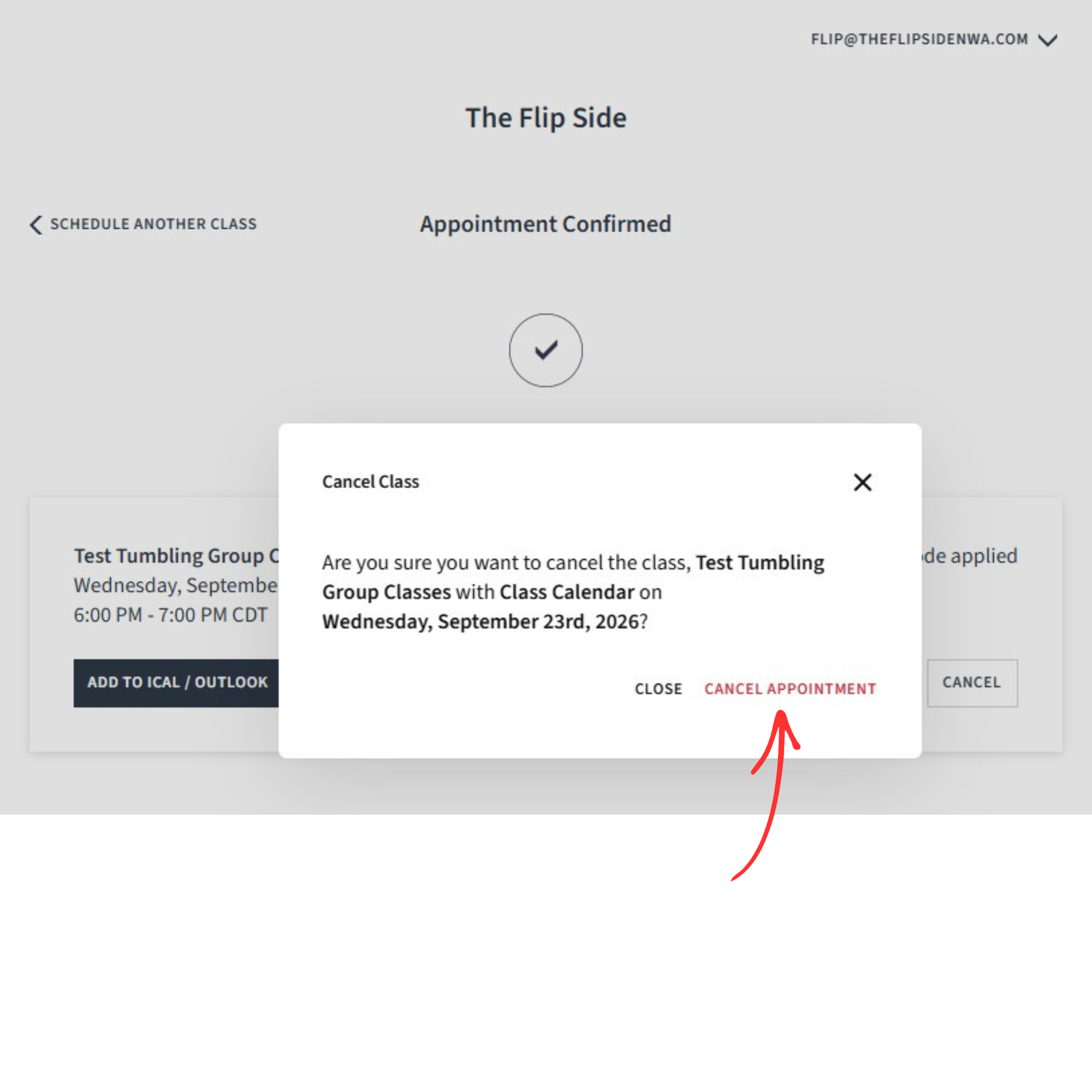
If you click “CANCEL” for an appointment, another pop up window will appear to confirm the cancellation. Click “CANCEL APPOINTMENT” to officially cancel that class date. You will get an automated email with your cancelation confirmation.
Once canceled, the code used to book the class will automatically receive 1 credit back to be used for a future date. You can check the code balance to confirm this (see “Mange Codes” above or "CHECK CODE BALANCE” below).
Note, the system will not allow you to cancel an appointment within 12-hours of the class start time.
Checking Code Balance without logging in
Check Code Balance Without Account
If you do not have an account or are not logged in, you can still check your code balance. Using the booking link for your class level and scroll all the way to the bottom of the page, you should see the button "CHECK CODE BALANCE".
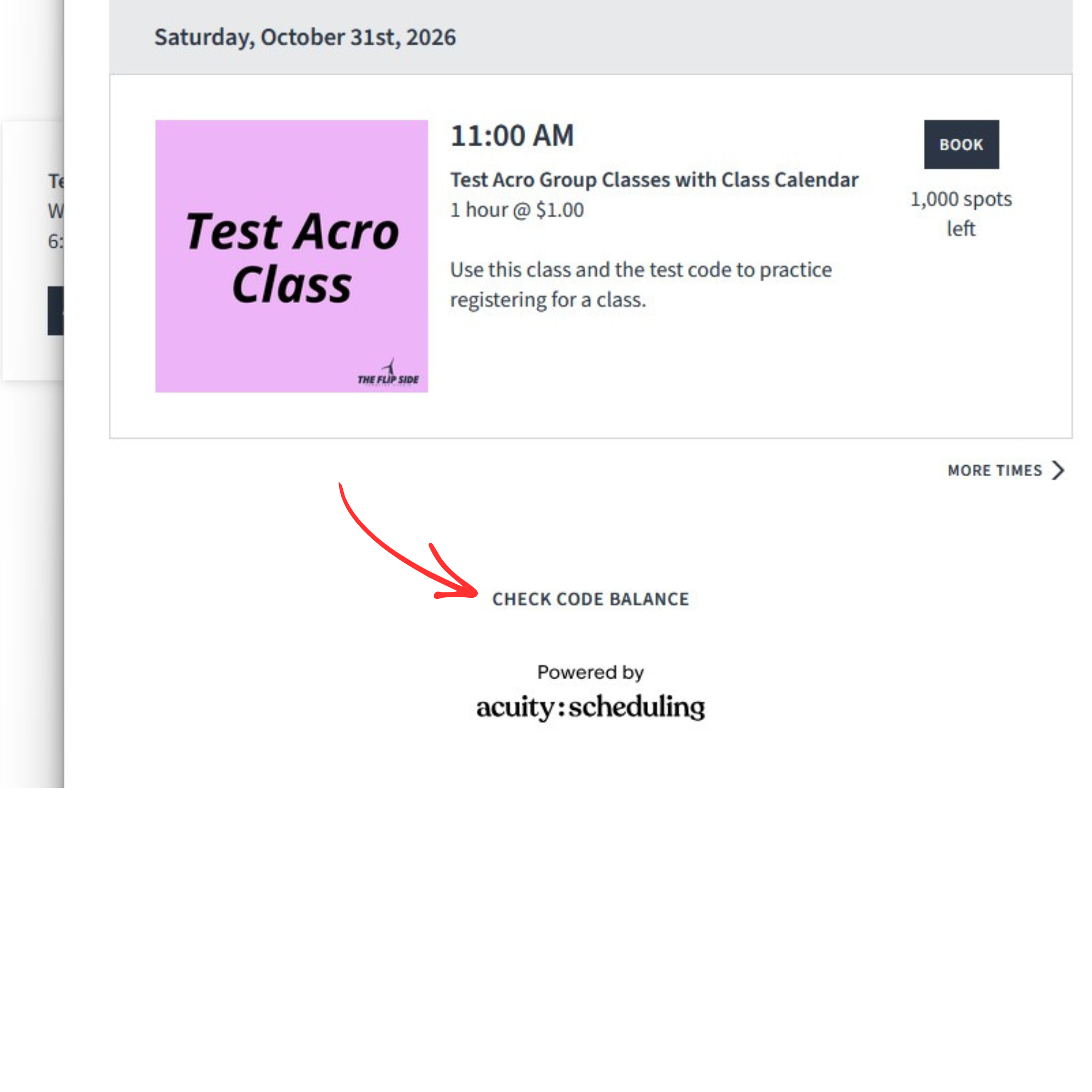
View Code Balances
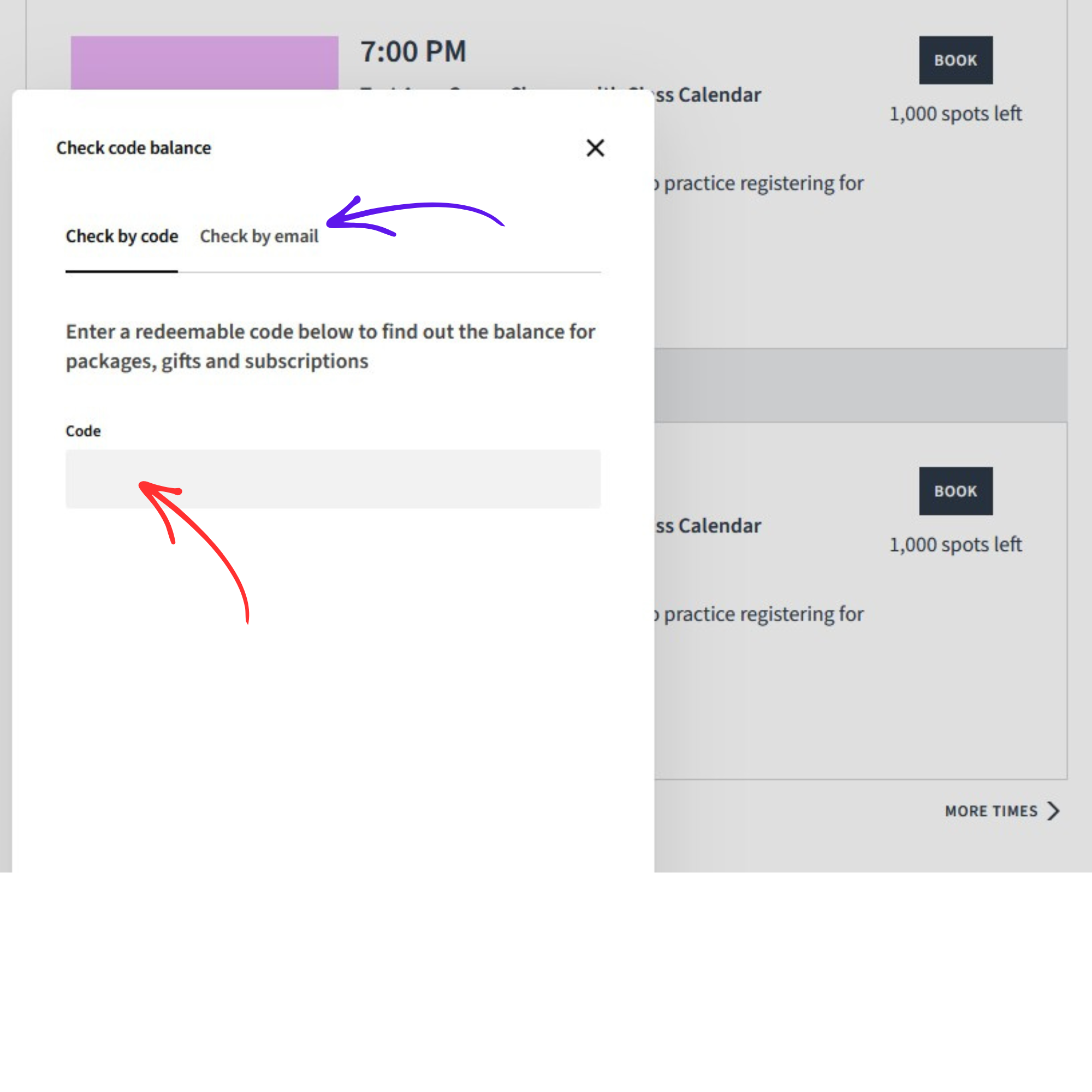
If you click “CHECK CODE BALANCE”, a pop up window will open allowing you to enter your code.
You can also check balance by “Check by email” where you can type in your account email address, and the system will send you an email with all codes tied to your account for any class level; along with the number of uses left for each code.
Error messages when checking out
Error Message for Wrong Code
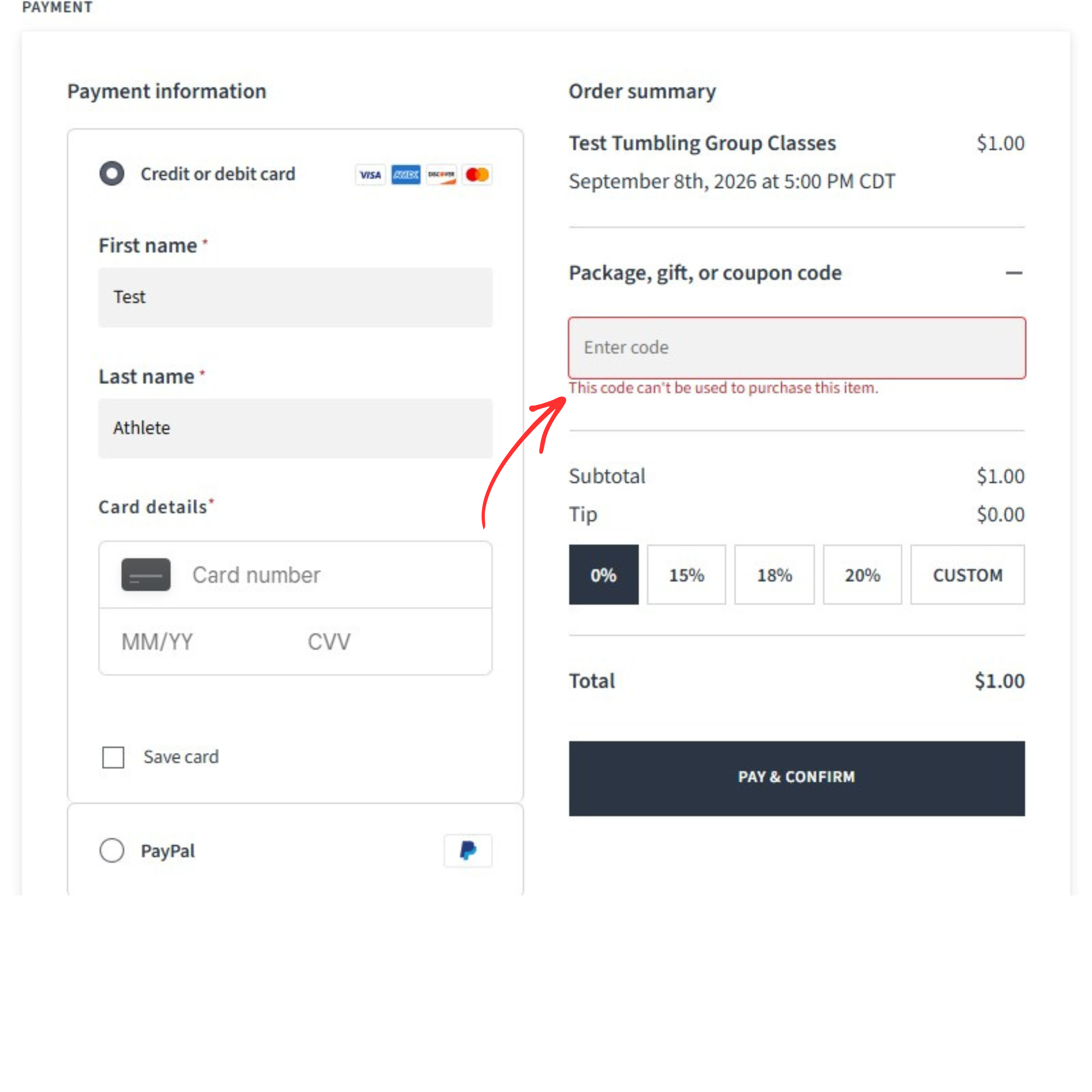
If you try to use the wrong code for a class, you will get an error message that says “This code can’t be used to purchase this item.” To confirm which code is for which class, use the “Manage Codes” feature or the “CHECK CODE BALANCE” feature (see above).
Error Message When No Credits Left
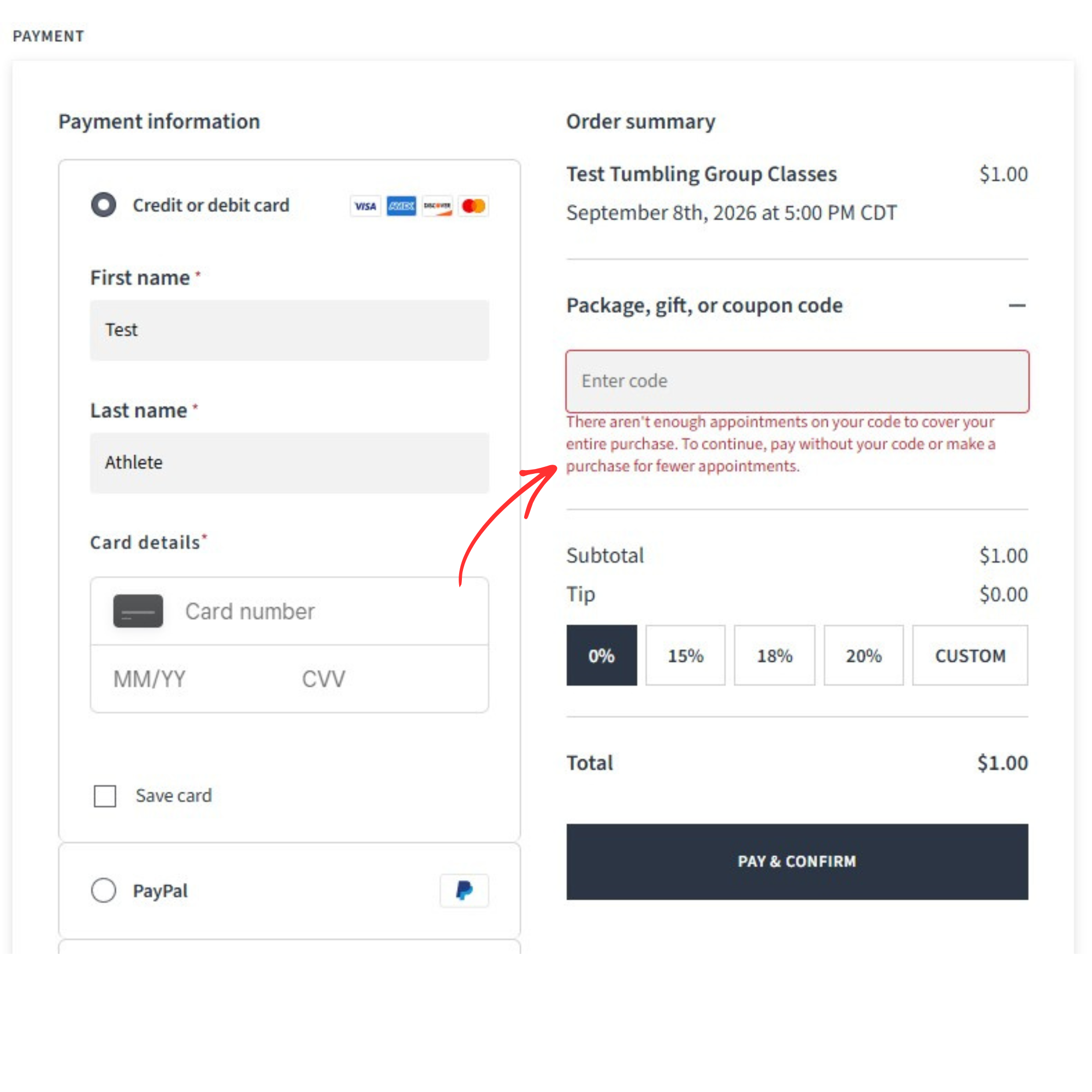
If you try to use your code after you have used all of your available credits, you will get an error message that says “There aren’t enough appointments on your code to cover your entire purchase. To continue, pay without your code or make a purchase of fewer appointments.”
Note, the system will let you book the class if you complete the payment. However, this is the reason the class price is set to $1,000 to stop anyone from continuing to book class after they have used all of their credits.
CAUTION: The system really will charge you $1,000 if you try to checkout without using your unique code.
Published 7/27/26